How to Automate Public Records Data Extraction with OCR
Aug 13, 2025
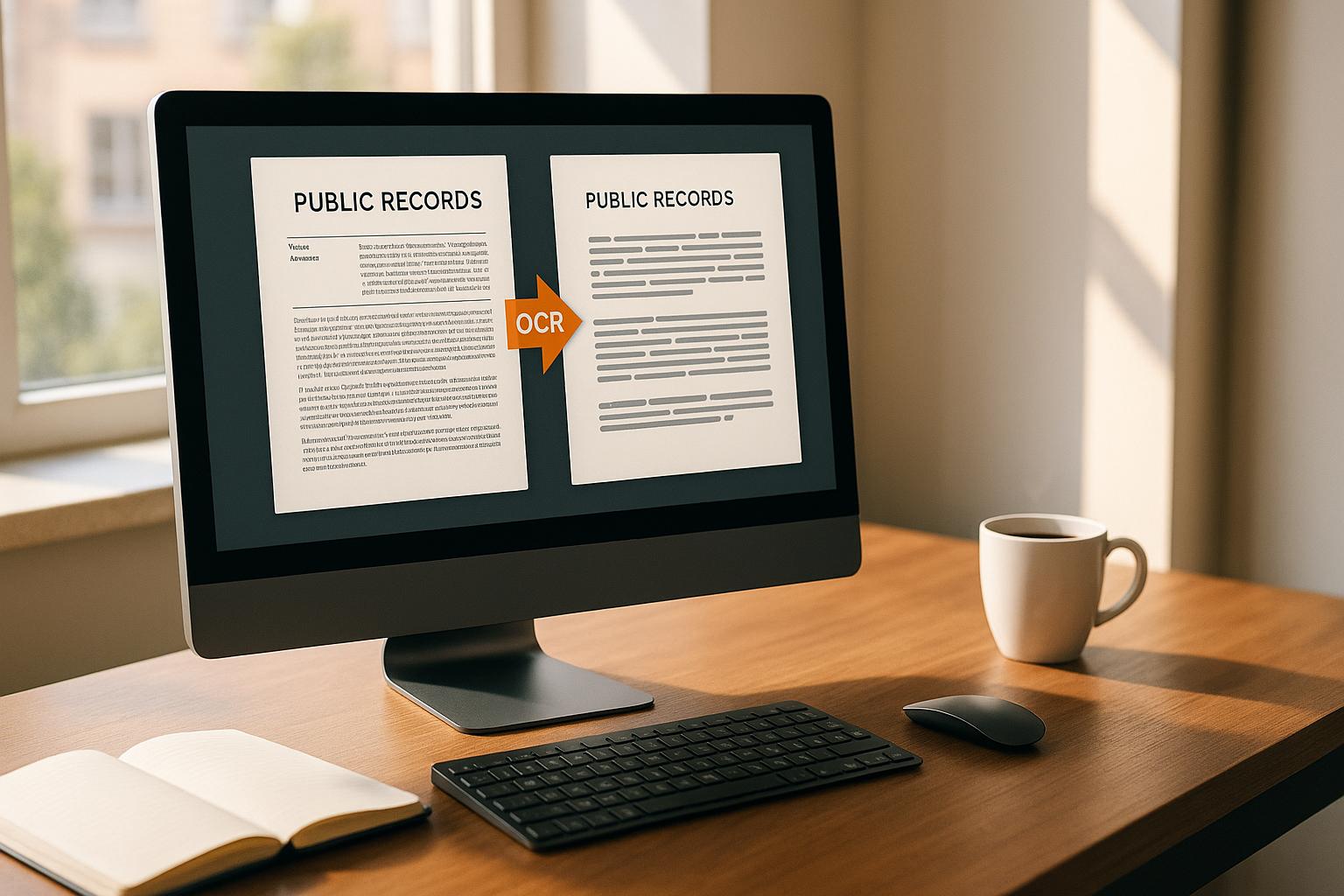
Need to pull info from public files fast and right? OCR (Optical Character Recognition) tech can make this job easy, quick, and less wrong.
Here’s what you should know:
What OCR Does: Turns scanned papers, images, or PDFs into text a machine can read.
Why It’s Key: Public files like permits, business papers, and property files have good info for firms, but a lot of it is in hard-to-edit styles.
Main Perks: Using OCR to pull out data cuts out hand typing, works fast (up to 120 pages a minute), and fits right into work steps.
Picking the Best Tools: Free tools like Tesseract work well for easy stuff, while paid ones like Google Cloud Vision or Amazon Textract are better for hard cases.
Stay Legal: Make sure you follow laws like GDPR or CCPA when you use public files.
By using OCR with AI tools, firms can sort out leads, line up info well, and keep within the law. Tools like Clear AI even use the pulled data to build ads that reach the right people well.
For $500/month (with a $75 start cost), Clear AI gives a good, easy way for firms to find leads, with a promise of at least four replies each month - or the next month free. This way turns public files into useful info, saving time and helping growth.
Start using tools today and make pulling data simple.
How to automate Data Extraction using OCR & Regex?
Easy Guide to Public Records and Data Use
Public records are key sources of lead data for local services all over the US. These logs kept by government groups are open for all to see and are full of useful info that firms can use. They help track market changes, stay up-to-date with rule changes, and check out possible clients and suppliers [2][1].
To get the best out of OCR (Optical Character Recognition) tech, firms should focus on the most useful records and main data points that bring real results. Also, knowing the US data privacy rules is key to stay right by the law [5].
Main Kinds of Public Records
There are many kinds of public records, but some are extra useful for local service firms:
Business records and company files: This covers business setups, first papers, yearly summaries, who owns what, and professional permits [1][2][4]. For instance, when a new yard care firm sets up or an HVAC expert gets their permit again, these files may show new leads.
Property records: Papers like building permits are great for firms in building, fixing up, or moving services [1][2]. A permit for fixing up a home or putting in a new HVAC in a store might show a potential client getting ready for a big job.
Legal records and court papers: These show who is suing who, what the court decides, and can show changes in business or money moves [1][2][3]. Like, a cleaning service might see chances in homes being taken back that lead to new owners.
Government files and permits: These cover government deals, money plans, and work permits, often showing a firm is growing or going into new markets [1]. For example, a build deal with a city can mean more work for many service firms.
Key Data Points
For finding leads, some info is always valuable:
Contact and business info: Stuff like business and owner names, phone numbers, and places are key for reaching out. When things were filed help put leads in order, while permit values can show how big a job might be.
Money signs: Info like property sale prices or pricey building permits can point to people with lots of money to spend. For instance, a permit for redoing a store might mean a firm is ready to put a lot in their workspace.
Dates info: Dates on permits, setups, and court files are important for when to reach out. A firm asking for an expansion permit might soon need more services.
Place info: Details on place, property lines, and area rules help firms target where permits or setups are just done.
Rules and Legal Must-Dos
Getting facts from open records has its own tough parts, mainly when you have to follow the rules for keeping things private. While open records are there for all, rules often tell us how we can use this data [1]. Firms dealing with this info must find a good place between keeping a person's privacy safe and keeping their own legal place safe [5].
Not following rules like GDPR, HIPAA, or Sarbanes-Oxley can bring big fines [5][6]. As rules for privacy touch more people around the world, firms need to stay on top of these changing needs [5].
To keep in line, firms must:
Know the rules well: Point out rules that matter, such as GDPR, CCPA, or rules just for their work [5].
Set up strong ways to handle data: Keep good records and clear track records to stay safe from legal checks.
Follow who can see what: Some records are just for those with the right, making firms confirm why they need this touchy data [1].
Picking the Right OCR Tools and Methods
Choosing the best OCR setup depends on the kinds of documents you have, the amount of data, and your budget. A smart choice at the start can save a lot of time and cut down on trouble later.
OCR Engine Options and Ideas
Open-source tools like Tesseract are good for pulling text from clear, printed papers, such as government forms, with no need to pay fees. But, they may find it hard with more complex or older papers that might have flaws.
On the other side, commercial APIs like Google Cloud Vision, Amazon Textract, and Microsoft Azure Computer Vision are better with messy files, handwritten words, and detailed tables with more sure results.
A hybrid way often works best. Use open-source tools for easy papers to keep costs down, and save commercial APIs for tougher files. This plan mix low cost and good work and helps you pick between set and changing ways to pull out data.
Set vs. Free Extraction
Set OCR uses set layouts, perfect for forms like building permits or business papers [7][8]. This way gives steady results but needs different sets for each kind of paper. Any change in layout means sets need to be made new, which takes time.
AI-led, free OCR reads papers with different layouts by itself. This is great for dealing with forms from different places or papers that often change. While free systems can change better, they often need more power and may find it hard with new layouts.
Many groups use both ways to get the right mix of fast, right, and easy use. Pick an output form that fits well into your work to boost how well you work.
Output Forms for Done Data
The form you pick for your done data should match your work needs:
JSON: Best for straight use with CRMs. It lets you sort data into clear spots like business name, contact info, project worth, and permit date.
CSV files: Great for manual check and understanding, as they can be brought into tools like Excel for sorting and looking through.
Searchable PDFs: Good for keeping to rules and saving records, as they keep the look of the first paper while making the text you can search and copy.
In many cases, putting out data in more than one form at once can help. For example, if you’re using Cohesive AI for getting leads, JSON-form data can go right into automated email plans, making fast and personal answers to new leads. This makes sure your pulled info is used right away, leading to fast and good talk.
Making a Data Fetch System
Turning wild public files into neat, ready-to-use data needs a good auto system. The point is to make sure all steps - from getting data to keeping it - work well and fast.
Getting Data and Making it Ready
Start by linking up with government FTP sites or APIs to grab a lot of data. A lot of offices let you use these options. Like, some places where they keep track of firms, they refresh their files early in the day. Get your data when fewer people are online to make sure you get the newest stuff without overloading the systems.
Put your files in easy-to-get places. For example, a way like /permits/YYYY/MM/document_name.pdf helps you keep track of files and see if any are missing.
Before you use OCR (that reads images as text), making the pictures clear helps a lot. You should:
Make it straight: Fix any tilt in scans.
Take out noise: Get rid of bits you don't want.
Make it clear: Make the text easy to see.
Make it sharp: Clear up fuzzy images.
Check for copies to save time and space. Use file codes to find exact copies, and use near-match checks for files that are almost the same.
Once files look good and are in order, pull out exact bits and check the data is right.
Pulling Out Data and Checking It
Make maps for each kind of file to get only what you need. For example, for firm papers you may need company name, spot, license number, start and end date. For building permits, you might look for the spot, kind of permit, guessed worth, and who's doing the work.
For stuff like dates, phones, or numbers, simple patterns can help. But for harder text, like company names with odd bits or across many lines, learning systems are often better.
To be sure it's spot on, use scores to mark any maybe mistakes. Set strict rules for key bits, and have unsure things checked by a person.
Use checks to spot common mistakes:
Make sure dates are right, like a permit shouldn’t end before it starts.
See if ZIPs fit the town and state given.
Look at money amounts that are too high or low.
Check that phone numbers are as long as they should be.
Logging issues is key to keeping your system good, especially if some pulls go wrong.
Keeping and Using Data
Plan your data base thinking about how it will work with other systems. Use different tables for different record kinds but keep the same names for the same thing across all.
For needs that can’t wait, handle new files right away, and send data straight to tools like a CRM or lead finder. For more data, pile the tasks and set them up for slower times.
Link the data you got with business tools through APIs. Many CRMs take JSON data via REST APIs, putting in new leads when firm files are updated. For those using tied AI, easy link-ups let you target leads right away, automatically.
Set up strong backup and the use of many forms of saved data. Keep raw, changing, and end data in different spots. This allows you to rework files if better ways come up or if mistakes are found later.
Watch main things like how right the pull of data is, how fast it gets done, and how often errors happen. Make alarm systems for when the work goes down below what's okay. This method gets things ready for bigger, self-run lead making setups.
Top Tips for Being Right, Growing Big, and Following Rules
Once you set up your auto-get data tools, keeping them up to speed and law-friendly is key. Stay on top of being right, growing, and following the rules to keep your public data get system working fast and fair.
Making OCR Right
How good your start papers are matters a lot for how well OCR (a tool that reads text) works. Many times, places that keep records scan them in ways that are not the same, and old papers have things like faded text, hand notes, or even marks from a drink. These troubles can mess with even the best OCR tools.
To handle this, fix your papers first. Move like making light parts darker can help weak text pop, while smart ways to tell text from marks help, especially on papers with water or that were copied a lot.
For key info, like firm names or spots, set clear rules. If the OCR says a piece is unsure, check it by hand. Also, use auto-fixes like losing the noise or making edges clearer to help the OCR when it's having a hard time.
Simple forms, like ones for a work permit, can use shape matching. But since designs can change (like when you renew or get new), having stretchy shapes helps deal with these changes.
Making Work Bigger
When you have tons of papers, work fast is what lets you win. Group tasks help make tasks smooth. Like, handle all building okays from one place before changing to another paper kind like firm permits. This lowers the mess from flipping between OCR shapes and check rules.
Splitting tasks can make things even quicker by sharing jobs across many paths, so your tools use what they have best. Tricks like using old document bits help too - by knowing which files are the same, you avoid doing the same work on the same files. This is handy when the same papers show up often.
Big jumps in work, like when many records drop at once, need smart line handling. Put must-do-now papers first, like new firm signs, and leave less rush jobs, like old records, for slower times. Watch things like speed, mistakes, and job times to spot problems and keep your system fast.
Once your work moves well, the next thing is to make sure you follow rules and can check your work.
Doing Things Right and Being Able to Show It
Following rules is more than just a check - it should be in your steps from day one. Start by keeping a full history for every paper. Note things like when a paper was seen, which rules were used, and any hand-fixes done. This shows you where the data is right and keeps track of changes.
Always keep raw papers before you do stuff to them. Having the first copies, with times and where they came from, lets you go back and fix or check things if you need to later.
Keep old copies of your update rules. That way, you know what rules you used on which files.
Follow any rules set by government groups, like how much you can download at once or when you can use certain data. This helps your automated tasks run well without problems.
Be extra careful with important data, like Social Security numbers or home addresses. Hide or cut this data if you don't really need it. Make sure your data storage is very safe. Keeping detailed records of when you keep or delete data shows you care about following the rules.
Lastly, you must check your work often. Look over how well you pull data, how you handle data, and who gets to see the data. This helps you stay right by the law and keeps your system working well.
Using Clear AI for Lead Making
After you set up your OCR system to pull clean data from public files, the next step is to turn that data into workable leads. Here, Clear AI comes in, using the neat data from your OCR to help get leads for local service shops.
The system makes it simple by setting up data eating and outreach for each person. Instead of going through many files to find possible buyers, Clear AI takes your OCR data and turns it into direct campaigns. This smooth tie-in builds on your data system that works alone, making sure a clear flow from data pull to useful tips.
Making Lead Aim Easy with Clear AI
Clear AI uses the data your OCR system got and changes it into aimed lead drives. By mixing this set data with Google Maps taking, the platform makes detailed lead forms. For example, when your OCR works on business papers, signs, or set-up files, Clear AI finds firms that fit your target group.
The platform goes more by checking the set data to find clear chances. Let's say you aim at new yard care shops. Clear AI can pick useful info from sign-up data and check work using Google Maps to make sure the shop is running.
What makes this way stand out is the AI-driven tailoring of contact emails. Instead of sending all-the-same notes, Clear AI changes talks using the details from public files. For instance, if the data shows a new cooling system firm just got a builder's pass, the platform can make an email that points out this big step, making the contact on time and right.
Also, Clear AI lets you run up to three drives at once, letting you sort your data into clear target sets. You can group leads by things like pass state, place, or shop work, making sure a more direct plan.
Cheap Drive Care
Once leads are found, running drives well is key. Clear AI has a clear cost set-up: $500 each month with a $75 set-up cost, all with no long-year deals. Plus, the platform has a promise - if you don’t get at least four keen answers each month, you get the next month free.
The platform also takes care of email sending, handling the tech bits so you don’t have to. For shops working with lots of public data, this kind of set-up saves both time and stuff.
Once you link your OCR data to Clear AI, the system runs all the time without needing you to step in. This tie-in lets you focus on ending deals rather than handling lead make works, making it a top fit to your work alone data pull system.
Final Thoughts
When you set up and use the tips from before, using OCR to pull out data changes how small service companies find leads. Now, you don't have to go through tons of government files, business licenses, or permits by hand. This tool lets you do these jobs fast and on a big scale - keeping it right and within the rules.
For $500 each month and a $75 start fee, Cohesive AI is a cheap way to find leads compared to big money lead services. Plus, they promise: at least four leads a month, or the next month is free. By mixing OCR with AI for reaching out, the system makes sure clean, lined up data goes into tools that make messages fit each lead from real public info. This makes things run by themselves and lets small and medium service companies get to good lead tech without all the trouble or cost. With a way to run three plans at once, you can pick by place, business sort, or permit type to make your finding better and get more leads.
The main thing is to have a good OCR method set up. With that ready, moving to making leads happen by itself is easy and clear - giving you more time to make deals and grow your work.
FAQs
What legal factors should businesses consider when using OCR to extract data from public records, and how can they stay compliant with privacy laws like GDPR and CCPA?
When leveraging OCR technology to extract data from public records, businesses must carefully navigate privacy laws like GDPR and CCPA to ensure they operate within legal boundaries.
The General Data Protection Regulation (GDPR) mandates that organizations have a lawful basis for processing data, maintain transparency about how the data is used, and implement robust security measures to protect it. Meanwhile, the California Consumer Privacy Act (CCPA) grants individuals rights such as accessing their data, requesting its deletion, or opting out of its collection - obligations that businesses must uphold.
To ensure compliance, businesses should focus on these key actions:
Regular data audits: Understand and document what data is being processed and why.
Obtain proper consents: Secure permissions where required, particularly for sensitive information.
Strengthen security measures: Protect extracted data with advanced security protocols.
Provide clear privacy notices: Inform individuals about how their data will be used in a straightforward and accessible manner.
By adhering to these practices, businesses can use OCR tools responsibly while meeting both legal requirements and ethical expectations.
What should businesses consider when choosing between open-source OCR tools like Tesseract and commercial options like Google Cloud Vision or Amazon Textract for data extraction?
When deciding between open-source OCR tools like Tesseract and commercial options such as Google Cloud Vision or Amazon Textract, it's important to weigh your business's specific needs around accuracy, scalability, and budget.
Commercial OCR solutions typically offer greater accuracy, support for multiple languages, and advanced features like handwriting recognition or handling complex document layouts. They’re also designed to scale effortlessly for processing large volumes of documents. The trade-off? These services come with recurring costs, which might not suit every budget.
In contrast, open-source tools like Tesseract are budget-friendly and highly customizable. They’re a great fit for businesses with technical expertise and straightforward OCR needs. While they demand more effort in setup and maintenance, they provide a cost-controlled alternative for organizations that prioritize flexibility and affordability.
The right choice boils down to your organization's technical capabilities, financial constraints, and the complexity of the documents you need to process.